Introduction
This application is intended to assist field
technicians of Gilbarco Inc. and any third party
contractor, Authorized Service Contractor (ASC), who is approved to operate on
Gilbarco Inc. equipment. A previously existing account can be used to login. The
application is currently intended for use within the United States.
Getting Started
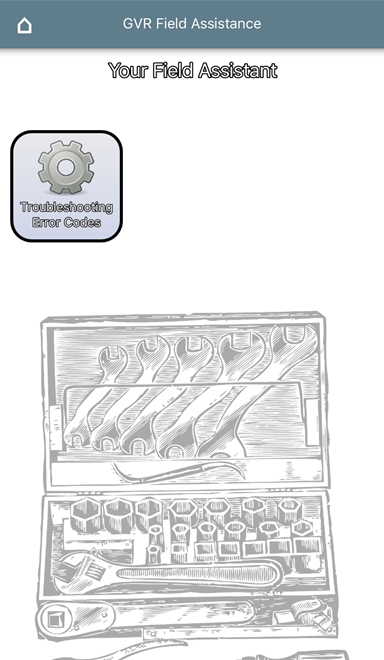
Once you log into the app, you will be brought
to this screen. Clink on the Troubleshooting Error Codes icon to start.

Filtering Errors
After clicking on the Troubleshooting Error
Codes icon, this is what you will see.
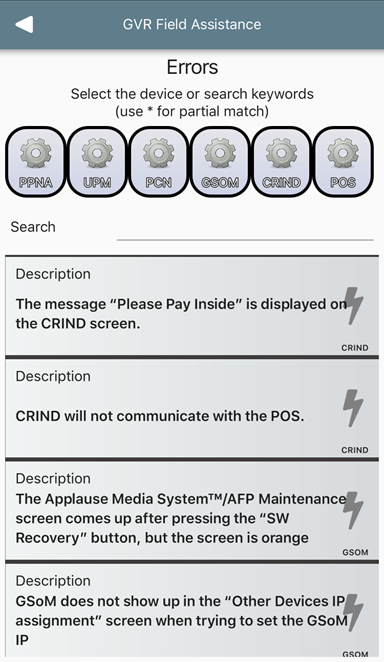
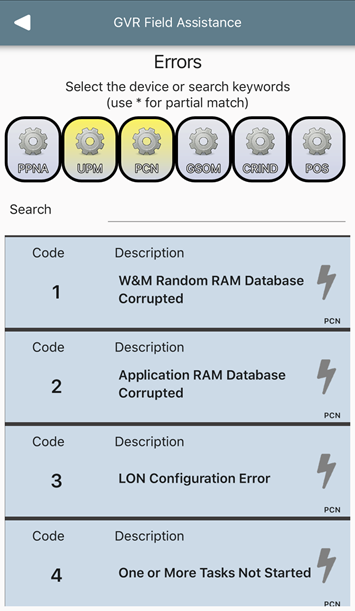
By clicking on one or more of the devices
listed, you can select which device errors you want to see in the list.



Searching
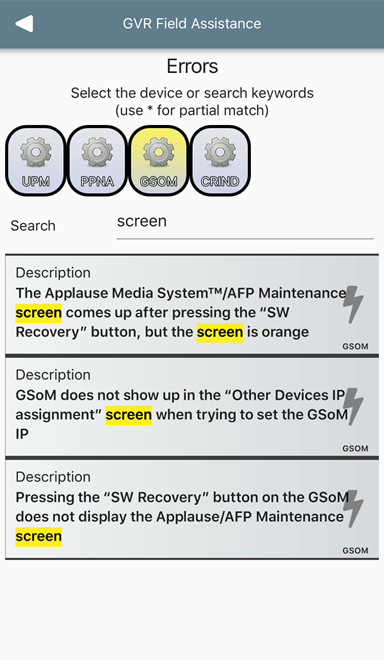
You can use the search bar to search for a key
word.

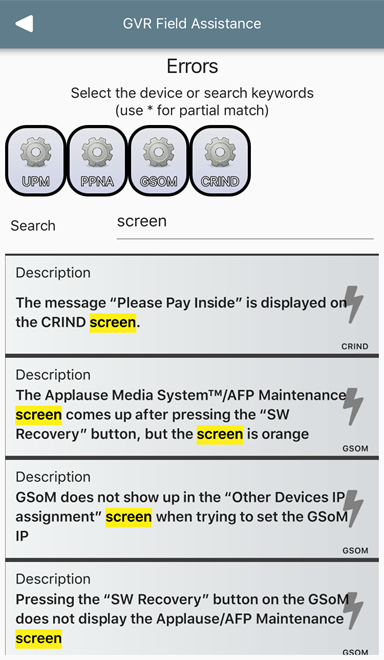
You can filter the search list by devices once
again by clicking on the device(s).


Feedback
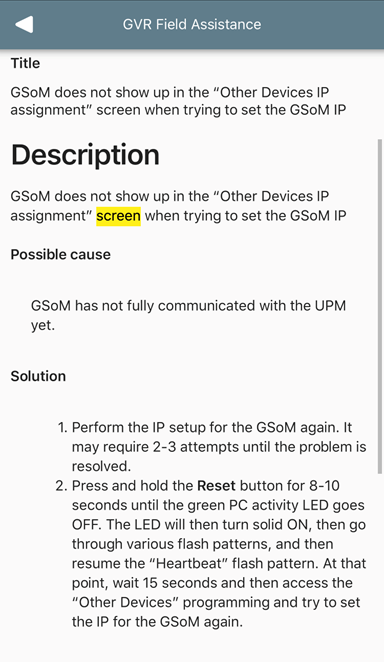
Clicking on any of the errors will take you to
a description page similar to the one shown below.
Here, you will find the instructions you need to perform in order to resolve
the specific issue.
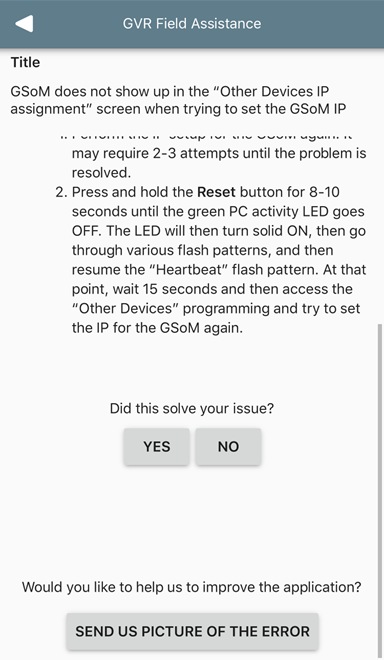
After troubleshooting, you can scroll to the
end of instructions page to find the place to give feedback. Answering “Did
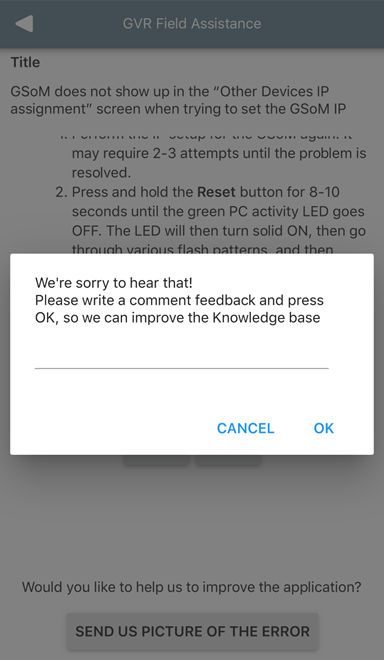
this solve your issue?” with Yes will display a thank you pop-up. When
answering no, you’ll receive a pop-up containing a textbox asking for more
details, as shown below:

Sending Pictures to Improve the App
Help us make the app better! You can send a
picture of the error that has appeared on the UPM screen by clicking on SEND
US PICTURE OF THE ERROR.